

Agent Skills arrive in Cursor
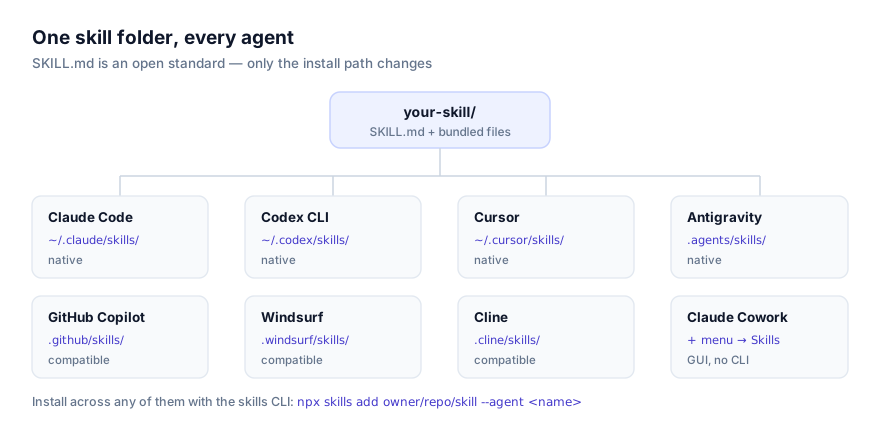
Cursor, built by Anysphere, added support for Agent Skills in version 2.4. Anysphere's own reference material is at the Cursor skills documentation. The mechanism is the same open standard Anthropic published in late 2025: a folder containing SKILL.md (YAML frontmatter with name and description, optionally allowed-tools and model, followed by markdown instructions) plus optional scripts/, references/, and assets/ subfolders. Cursor reads these at startup from its own dedicated directories, no different in spirit from how Claude Code, Codex CLI, or any other agent implementing the standard handles them.
What's distinctive about Cursor's implementation is that it sits inside an IDE rather than a standalone CLI. Cursor's Agent mode already has your open project, your file tree, and your editing context. A skill adds a specific, reusable procedure on top of that: how your team writes migration files, how a particular internal API expects requests shaped, a checklist Cursor should walk before opening a PR. You write it once, and Cursor's Agent reaches for it whenever a request matches, without you re-explaining the procedure in every chat.
Discovery works through progressive disclosure, same as elsewhere: Cursor reads only each skill's name and description at startup. The full SKILL.md body loads only once a request matches. This is why the description is doing all the real work. Cursor never sees the rest of the file until something in your prompt lines up with what you wrote there.
Before you install anything: check your version
If you're on a Cursor release older than 2.4, none of the following will work, and it won't look like an obvious error. Skills will simply never appear, with no error message pointing you at the version as the cause. Check your installed version from Cursor's own update or about screen before spending time debugging paths and descriptions that are probably fine. This is worth doing first specifically because the symptom of an old version (a correctly placed skill that Cursor never mentions) looks identical to the symptom of a bad description, and you don't want to spend twenty minutes rewriting a description that was never the problem.
Installing a skill
Via the skills CLI
npx skills add owner/repo/skill-name --agent cursor
owner/repo/skill-name is the skill's location on GitHub, the repository owner, the repository name, and the path to the skill folder inside it, if that repository hosts more than one skill. --agent cursor tells the installer to target Cursor's directories specifically rather than guessing, which matters if you also have Claude Code or Codex CLI installed on the same machine.
Run the command from inside a project to install at project scope; run it from anywhere else to install at personal scope.
To find something worth installing, browse getclaudeskills.com/skills, or narrow to skills confirmed to work in Cursor at getclaudeskills.com/platforms/cursor. Every entry links to the skill's source on GitHub instead of a packaged download, specifically so you can read it before installing.
By hand
A skill is just a folder. Cursor doesn't require the CLI to find one, only that it's sitting in the right directory when Cursor starts.
# Personal scope, every project, every workspace
git clone https://github.com/owner/repo ~/.cursor/skills/skill-name

# Project scope. This repository only
git clone https://github.com/owner/repo .cursor/skills/skill-name
A downloaded zip works the same way. Extract it directly into either path. Confirm SKILL.md lands immediately inside the skill's folder, not nested under an extra directory the archive introduced. That single extra folder level is the most common reason a manually installed skill goes completely unnoticed.
A worked example
Say you've written or found a skill called api-docs-generator that reads route definitions and produces OpenAPI-style documentation, and you want it available only in the API repo you're currently working on. The folder looks like this before you install it:
api-docs-generator/
├── SKILL.md
├── scripts/
│   └── extract_routes.py
└── references/
    └── openapi-template.yaml
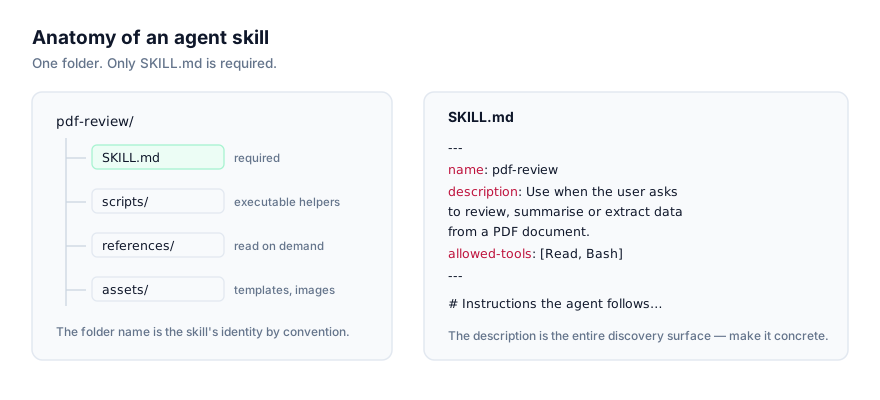
Installing at project scope with the CLI:
cd ~/code/my-api-project
npx skills add owner/repo/api-docs-generator --agent cursor
That leaves .cursor/skills/api-docs-generator/ inside the repo, with the same three items shown above. Commit it, and anyone else on the team who clones the repo and opens it in Cursor 2.4 or later gets the skill automatically, no separate install step for them. The equivalent manual install is git clone https://github.com/owner/repo .cursor/skills/api-docs-generator, which produces the identical folder without going through the CLI at all.
Updating or removing a skill
There's no central registry, so updating a skill means updating its folder directly. If you installed with git clone, cd into the skill's directory inside .cursor/skills/ or ~/.cursor/skills/ and run git pull to bring in upstream changes. If you installed with the CLI, re-running the same npx skills add command overwrites the folder with the current version. Removing a skill is a plain rm -rf on its folder, followed by starting a new Agent chat so Cursor stops reading it.
Because updates are manual, pinning is too. If an upstream change breaks a workflow you depend on, git checkout <sha> inside the skill's folder locks it to a known-good version, the same way you'd pin any other vendored dependency. For a project-scoped skill committed to the repo, an update is just an ordinary diff, reviewable in a pull request like any other change.
Personal vs project skills in Cursor
| Scope | Path | Suits |
|---|---|---|
| Personal | ~/.cursor/skills/ | Skills you want available in every workspace you open |
| Project | .cursor/skills/ | Skills specific to one codebase, or shared with a team through the repo |
Personal scope fits skills that aren't tied to any one codebase: a preferred way of structuring PR descriptions, a skill wrapping an internal tool you reach for across projects, general conventions you'd otherwise repeat in every new workspace's settings. It follows you regardless of which project you open.
Project scope is the better call when a skill only makes sense for one repository, something that understands a specific test harness, a specific deployment process, or a workflow a teammate wrote and checked into .cursor/skills/ so everyone on the project gets it the moment they clone it and open it in a supported Cursor version. It's also the more defensible default when you haven't fully reviewed a skill yet: the blast radius is one repo, and the install shows up as a normal, reviewable file in version control rather than something invisible in your home directory.
Default to project scope if you're not sure. It's a much smaller decision to promote a project skill to personal later than to walk back something installed globally that turns out to be a poor fit everywhere else.
Confirming Cursor picked it up
- List the directory.
ls ~/.cursor/skills/orls .cursor/skills/should show the skill's folder withSKILL.mdsitting directly inside. - Reload the Agent, not just the file. Cursor reads skill metadata when its Agent session starts. Adding a skill while a chat is already running won't register. Start a new chat, or reload the window if you're unsure the Agent has restarted.
- Ask, or invoke it with /. In a new chat, ask Cursor's Agent what skills it currently has available. It can answer from what it already read. Or type
/in chat to bring up the skill picker and select it directly, which is the fastest way to confirm the skill itself works correctly, independent of whether its description would have triggered it automatically.
If / finds and runs the skill correctly but natural phrasing never triggers it, the install is fine. The description needs to be more specific. If / doesn't show the skill at all, go back to step 1 and check the directory.
Why isn't Cursor's Agent using my skill?
The skill is installed but Cursor's Agent never reaches for it
This is the most frequent complaint, and it's a writing problem rather than an installation problem nearly every time. Cursor matches your request against the description field alone. Something like "Useful for APIs" gives the Agent nothing concrete to match against "add a rate limiter to this endpoint" or "review this route for missing auth." Write descriptions that name the trigger conditions directly:
# Too generic. Nothing for Cursor to match against
description: "Useful for APIs"

# States exactly what it does and when it applies
description: "Adds rate limiting middleware to Express routes using a token bucket. Use when the user asks to rate limit an endpoint, prevent abuse, or add request throttling."
A skill you just added isn't showing up
Cursor reads skills at the start of an Agent session, not on every keystroke. If you've added a folder or edited a description while a chat is already open, start a new chat before concluding the install failed.
Scripts inside the skill throw errors the moment they run
If a skill's instructions call a script under scripts/ and it fails immediately, check what the script needs before assuming the skill is broken. A Python script needs python3 on PATH, a Node script needs node, and anything shelling out to jq, pandoc, or a vendor CLI needs that binary installed too. Read the script before you rely on it (you should be doing this before installing regardless, see the note below) and confirm the dependency exists with which <tool>.
Two skills answering to the same name
If two skills share a name in their frontmatter (commonly because the same skill got installed at both personal and project scope, with the versions drifting apart) Cursor has two candidates that can match the same request or the same / invocation, and you shouldn't assume you know which one wins. Rename one skill's name field and folder to something distinct, or remove the stale copy outright. This is easy to miss because both copies will often look identical at a glance in a directory listing.
Read it before you install it
Cursor will run a skill's bundled scripts when its instructions call for it, same as any other agent implementing this standard. Before you install anything, open SKILL.md and every file under scripts/ and read exactly what it does, what commands it runs, what it touches on disk, whether it reaches out over the network. This is why getclaudeskills.com links to a skill's GitHub source instead of hosting a packaged download: you can read the code in the same place you're about to install it from.
If you're not confident in a skill yet, install it at project scope rather than personal. Smaller blast radius, and a diff a teammate can actually review before merging. For more detail on this, see the security guide. If you're deciding whether a skill or an MCP server is the right tool for something, agent skills vs MCP covers that trade-off, and the SKILL.md format explained is a good reference if you want to understand exactly what you're reading before you trust it. Browse everything cataloged for Cursor at getclaudeskills.com/platforms/cursor.