

Skills in Gemini CLI, in one paragraph
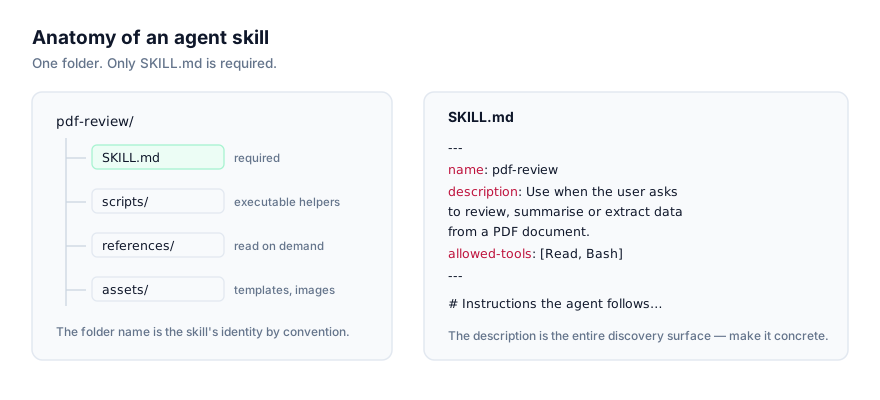
Google's Gemini CLI reads the same open Agent Skills standard as Claude Code, Codex CLI and the rest of the ecosystem: a folder with a SKILL.md file (YAML frontmatter naming the skill, followed by markdown instructions), optionally alongside scripts/, references/ and assets/ subfolders. Support shipped as an experimental preview in January 2026 and is now part of the stable CLI, with no flag required. What's distinctive about Gemini CLI specifically is its consent model: every skill activation shows you a confirmation prompt naming the skill and the directory it's about to read, before the skill's instructions load, a step most other implementations of the standard skip.
Two ways to install a skill
The native gemini skills command
Gemini CLI ships its own installer, separate from the cross-agent skills CLI covered further down:
gemini skills install https://github.com/owner/repo.git --consent
This clones the skill from its GitHub source and places it in your skills directory. The --consent flag pre-approves the install non-interactively, useful in scripts or CI, where you can't respond to an interactive prompt. Omit it and the CLI will ask you to confirm before writing anything to disk.
To check what's already installed, or to browse what a repository offers before pulling it in:
gemini skills list --all
The --all flag matters here specifically: Gemini CLI ships a handful of built-in skills (its own skill-creator among them) that are hidden from the default listing to keep the output focused on skills you installed yourself. --all reveals them too, tagged [Built-in].
Removing a skill uses the same command family, scoped explicitly to avoid ambiguity between personal and project installs:
gemini skills uninstall my-skill --scope workspace
The cross-agent skills CLI
If you already use the skills CLI to manage installs across several agents, it supports Gemini CLI as a target too:
npx skills add owner/repo/skill-name --agent gemini-cli
This is the better choice when you're installing the same skill into Gemini CLI and, say, Claude Code or Cursor in one pass, rather than running each agent's own installer separately.
Installing by hand
Neither installer is required. The format is just files, so cloning or copying works fine:
# Personal scope: every project
git clone https://github.com/owner/repo ~/.gemini/skills/skill-name

# Project scope: this repository only
git clone https://github.com/owner/repo .gemini/skills/skill-name
A downloaded zip works the same way once extracted. Confirm SKILL.md sits directly inside the skill's folder, not nested under an extra directory the archive added.
Where Gemini CLI looks for skills
Gemini CLI resolves skills across four tiers, lowest precedence first: built-in skills bundled with the CLI itself, skills bundled inside any installed extension, then your own user and workspace skills.
| Scope | Primary path | Alias | Right for |
|---|---|---|---|
| User (personal) | ~/.gemini/skills/ | ~/.agents/skills/ | Skills you want in every project |
| Workspace (project) | .gemini/skills/ | .agents/skills/ | Skills tied to one repository, or shared via version control |
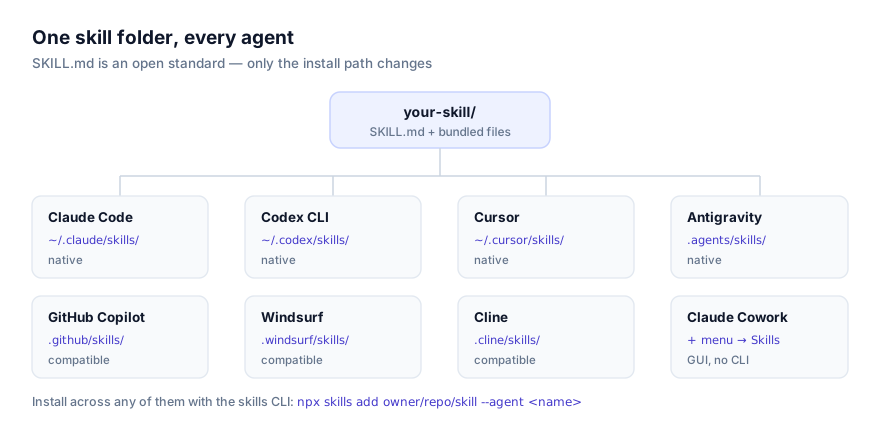
The .agents/skills/ alias is worth knowing about even if you don't use it: it's the same personal and project path that several other agents (Antigravity, GitHub Copilot, Windsurf, OpenCode, Cline and more) converged on as their default. Gemini CLI's own documentation is explicit that where both the .gemini/skills/ and .agents/skills/ alias exist at the same tier, the .agents/skills/ alias wins. If you're managing skills across multiple CLI agents from one directory, that convergence is what makes it possible to point several agents at one shared folder instead of duplicating skills per tool.
How activation actually works
At the start of a session, Gemini CLI scans all four discovery tiers and injects each enabled skill's name and description into the system prompt, which is cheap since it's metadata only. This is the same progressive disclosure mechanic every implementation of the standard uses: nothing about a skill's full body loads until it's actually needed.
Where Gemini CLI diverges from Claude Code and Codex CLI is what happens next. When your request matches a skill's description closely enough, Gemini CLI doesn't load the skill silently. It calls an internal activate_skill tool, which surfaces a confirmation prompt in the UI naming the skill and the directory path it's about to gain access to. Only after you approve does the SKILL.md body and folder structure get added to the conversation. Decline, and the skill doesn't load for that request.
This adds a step Claude Code and Codex CLI don't have, and it's a deliberate trade-off: slightly more friction per activation, in exchange for visibility into exactly what's about to run and what it can touch, every time. If you're installing skills from sources you haven't fully reviewed yet, that per-activation prompt is a real second line of defence on top of reading SKILL.md before you install, though it's not a substitute for reading it, since approving a malicious skill's prompt still runs whatever it says.
Reloading without restarting
Most agents that implement this standard read skills once at session start and stay that way until you open a new session. Install or edit a skill mid-session, and it's invisible until you restart. Gemini CLI has that same default behaviour, but it also ships an explicit escape hatch:
/skills reload
or the equivalent /skills refresh. Run either inside an active session after adding, editing or removing a skill, and Gemini CLI re-scans the discovery tiers without you needing to end the conversation. Two other in-session commands worth knowing: /skills disable <name> and /skills enable <name> turn a specific skill off or back on without uninstalling it, and /skills link <path> --scope user symlinks a skill from anywhere on disk into your skills directory instead of copying it, useful if you're actively developing a skill and want changes to its source to show up without a manual re-copy each time.
From experimental preview to stable, and where it stands now
Agent Skills support in Gemini CLI has a short but specific history worth knowing if you're troubleshooting an older setup guide. It first shipped as an experimental preview around version 0.23.0 in early January 2026, and at that point using it meant installing the preview channel explicitly (npm install -g @google/gemini-cli@preview) and turning it on by hand through /settings. It wasn't part of the default stable build at all. It has since moved into the stable release channel and is enabled by default; the current stable release, @google/gemini-cli version 0.55.1, needs neither the preview tag nor a settings flag to use skills. If you're on an old install and skills aren't showing up at all, updating (npm install -g @google/gemini-cli@latest) is worth trying before anything else on this page.
Verifying the install worked
- List it.
gemini skills list --allshould show the skill, including built-in ones if you're checking those too. - Check the folder directly.
ls ~/.gemini/skills/orls .gemini/skills/(or the.agents/skills/alias, if that's where it landed) should showSKILL.mdsitting directly inside the skill's own subfolder. - Trigger it and watch for the consent prompt. Ask Gemini CLI to do the thing the skill covers, in a fresh session if you haven't reloaded. If the skill is genuinely installed and its
descriptionmatches, you'll see the activation confirmation before anything runs. No prompt at all after a plausible request usually means the description didn't match. See below.
When a skill doesn't activate
No confirmation prompt ever appears. This is almost always the description field, not the install. Gemini CLI's matching is entirely description-driven. A vague description like "helps with reviews" gives the model nothing concrete to match your actual request against. Name the trigger conditions directly:
# Too vague to reliably match anything
description: "Helps with reviews"

# Names what it does and when to use it
description: "Reviews pull requests for missing tests, exposed secrets, and unsafe database migrations. Use when asked to review a PR or check a diff before merging."
You added or edited a skill and nothing changed. Run /skills reload (or /skills refresh) in the current session, or start a new one. Gemini CLI doesn't watch the filesystem continuously.
A skill worked before and silently stopped. Check whether it got disabled with /skills disable at some point, intentionally or by a stale script. /skills list all shows disabled skills alongside active ones so you can confirm state before assuming something's broken.
You approved the consent prompt but the skill's instructions don't seem to run correctly. That's a content problem inside SKILL.md, not an installation or activation problem. The consent step only gates whether the skill loads, not whether its instructions are well-written.
A bundled script fails immediately. Same as any other agent implementing this standard: a script under scripts/ needs whatever runtime it assumes (Python, Node, a specific CLI) actually present on your machine. Read the script before installing (you should be doing this regardless) to see what it expects, then confirm with which <tool>.
Skills are not the same thing as GEMINI.md
If you're already using a GEMINI.md file to steer Gemini CLI in a project, it's worth being clear about how that differs from a skill, because the two solve different problems and mixing them up wastes context. GEMINI.md is always-on: Gemini CLI loads it (from the global ~/.gemini/GEMINI.md, any GEMINI.md in your workspace and its parent directories, and further files it finds just-in-time as it accesses subdirectories) and concatenates all of it into every single prompt, whether that instruction is relevant to the current request or not. That's the right place for things Gemini CLI should always know: coding style, project conventions, a persona you want it to keep.
A skill is the opposite by design: conditional. It costs nothing until a request matches its description, at which point its full body loads for that turn. Put things Gemini CLI needs on every single request in GEMINI.md. Put specialised, occasionally-needed procedures (a report format, a migration checklist, a workflow you don't want repeated in full on every unrelated prompt) into a skill instead. Large GEMINI.md files that have grown into a list of "if doing X, do Y" procedures are usually a sign some of that content would serve you better as skills, loaded only when the matching request actually shows up.
Read it before you approve it
Gemini CLI's per-activation consent prompt is a genuinely useful extra layer, but it only tells you what directory a skill is about to touch. It doesn't summarise what the skill's instructions actually tell the agent to do, or what any bundled script executes. That's still on you. Before installing anything, open SKILL.md and everything under scripts/ and read it, the same practice covered in full in the security guide. This site links every skill to its GitHub source rather than hosting a packaged download specifically so that step is always possible before a skill ever reaches your machine.
If you're not confident a skill deserves trust yet, project scope (.gemini/skills/) keeps it confined to one repository and shows up as a reviewable, git-tracked diff rather than something sitting invisibly in your home directory. Gemini CLI's own skills documentation lives at github.com/google-gemini/gemini-cli if you want the vendor's full reference. For how activation and discovery work in more general terms across every agent that implements this standard, see how agents discover and activate skills, and browse getclaudeskills.com/skills for skills ready to install.