

Cascade and Agent Skills
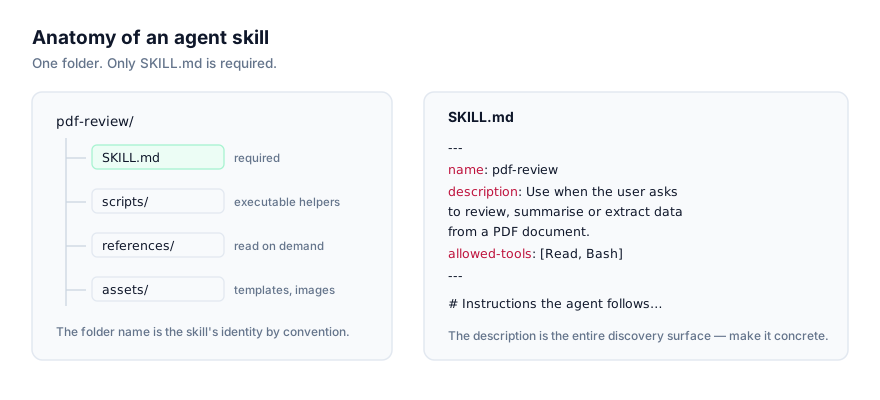
Windsurf, built by Cognition, ships an agent called Cascade that reads Agent Skills using the same open standard that Anthropic published in late 2025: a folder containing SKILL.md (YAML frontmatter with name and description, optionally allowed-tools and model, followed by markdown instructions) plus optional scripts/, references/, and assets/ subfolders. There's no Windsurf-specific dialect of the format. A skill written and tested somewhere else generally drops into Windsurf unchanged. Cognition's product documentation lives at docs.windsurf.com.
The point of a skill is the same here as anywhere: turning a procedure you'd otherwise retype into every Cascade session into something it finds on its own. If you want Cascade to consistently follow a particular code review checklist, write commit messages in a specific shape, or walk through a multi-step release process the same way every time, that's what a skill folder is for. Written once, discovered automatically when a matching request comes in.
Discovery works the same way it does across the standard: at session start, Cascade reads only each installed skill's name and description, not the body and not any bundled scripts. The full SKILL.md content loads only once your request matches the description closely enough, and scripts or reference files inside the skill load only when the loaded instructions actually call for them. This progressive disclosure is why having a large library of installed skills costs almost nothing until one is actually used, and why the description is the one field that determines whether a skill is ever seen at all.
"Compatible" vs "native" support, explained
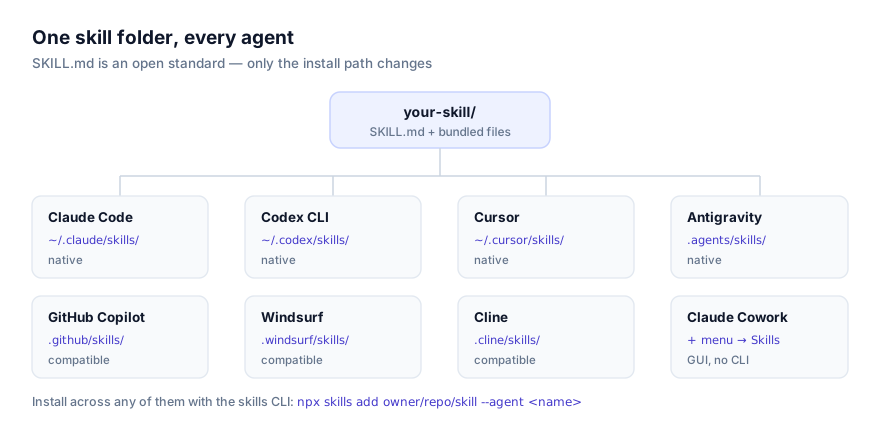
Windsurf's listing here is marked compatible, not native. That distinction is worth understanding rather than glossing over. Native support means the platform vendor (Anthropic for Claude Code, OpenAI for Codex CLI) built and maintains the skills integration directly. Compatible means the tool reads the same open SKILL.md format, but the integration isn't maintained by the standard's originator.
In day-to-day use this rarely matters: the file format is identical, and a skill that works in a native tool works the same way in Windsurf. Where it can matter is at the edges, a very new part of the specification landing in native tools first, or a tool-call type (allowed-tools) that a compatible integration hasn't wired up yet. If a skill behaves oddly in Windsurf specifically, that's worth keeping in mind as one possible explanation, alongside the more common causes covered in troubleshooting below.
Installing a skill
Via the skills CLI
npx skills add owner/repo/skill-name --agent windsurf
owner/repo/skill-name is the skill's location on GitHub: repository owner, repository name, and the path to the specific skill folder if the repo hosts more than one. The --agent windsurf flag targets Windsurf's directories specifically, which matters if you've also got Claude Code, Cursor, or another supported agent installed locally.
Run the command from inside a project to install at project scope, or from anywhere else to install at personal scope.
Browse skills to install at getclaudeskills.com/skills, or filter to ones confirmed to work in Windsurf at getclaudeskills.com/platforms/windsurf. Listings link to a skill's GitHub source rather than a packaged download, so you can read it before installing.
Manually
Nothing about the format requires the CLI. Cascade just reads whatever's sitting in the right directory when a session starts.
# Personal scope, every project
git clone https://github.com/owner/repo ~/.agents/skills/skill-name

# Project scope. This repository only
git clone https://github.com/owner/repo .windsurf/skills/skill-name
Notice the personal path uses ~/.agents/skills/ rather than something Windsurf-specific. That's not a typo. It's a shared global convention. Several compatible tools (Windsurf, GitHub Copilot, OpenCode, Cline, Roo Code, Goose, Kiro, Continue, and Trae, along with Antigravity even though it's native) all read personal skills from the same ~/.agents/skills/ location, while each keeps its own project-scoped folder name (.windsurf/skills/ for Windsurf specifically). If you run more than one of these tools, a single personal skill install at ~/.agents/skills/ is potentially visible to all of them. Worth knowing before you assume a skill is Windsurf-only just because that's where you installed it from.
A downloaded zip works the same way. Extract it into either path directly. Confirm SKILL.md sits immediately inside the skill's folder rather than nested under an extra directory the archive introduced; that extra level is the most common reason a manual install goes unnoticed.
Personal vs project skills
| Scope | Path | Fits |
|---|---|---|
| Personal | ~/.agents/skills/ | General-purpose skills you want everywhere, potentially shared with other compatible tools on the same machine |
| Project | .windsurf/skills/ | Skills tied to one codebase, or shared with a team through the repo |
Personal scope suits anything not tied to a specific project: your preferred PR description format, a skill wrapping a tool you use across every codebase, conventions you'd otherwise repeat in every new workspace. Because the path is shared across compatible tools, it's also the place to put a skill you want available regardless of which of those tools you happen to be using that day.
Project scope is the better fit when a skill only makes sense for one repository, something that understands a specific test suite, a specific deploy pipeline, or a workflow a teammate wrote and committed to .windsurf/skills/ so the rest of the team gets it automatically on clone. It's also the safer default for a skill you haven't fully reviewed, since it's confined to one project and shows up as an ordinary, git-tracked file rather than something invisible in your home directory.
If you're unsure which to choose, start with project scope. Promoting it to personal later is a one-line copy; walking back something installed globally (especially given it may now be visible to other tools sharing that path) is more work.
Updating or removing a skill
There's no registry beyond the filesystem, so updating a skill means updating its folder directly. If you installed with git clone, cd into the skill's directory under .windsurf/skills/ or ~/.agents/skills/ and run git pull to bring in upstream changes. If you installed via the CLI, re-running the same npx skills add owner/repo/skill-name --agent windsurf command overwrites the folder with the current version. Removing a skill is a plain deletion of its folder, followed by a new Cascade session so it stops being read.
Because updates are manual, so is pinning a version. If an upstream change to a skill breaks something you rely on, git checkout <sha> inside its folder locks it to a known-good commit, the same approach you'd take with any other vendored dependency. For a project-scoped skill committed to .windsurf/skills/, an update shows up as an ordinary diff a reviewer can read before it merges. Personal skills at ~/.agents/skills/ aren't version-controlled by default, so if you're relying on one heavily, it's worth putting that folder under its own git repo so you can track and roll back changes the same way.
Verifying Cascade loaded the skill
- List the directory.
ls ~/.agents/skills/orls .windsurf/skills/should show the skill's folder withSKILL.mddirectly inside it. - Start a new session. Cascade reads skill metadata once, at session start. A skill installed or edited while a session is already running isn't visible until you restart.
- Ask Cascade directly. In a fresh session, ask what skills are currently available. Since Cascade has already read every installed skill's name and description by that point, it can answer accurately. If the skill you installed isn't in the list, the install didn't take. If it's listed but never triggers on real requests, the description needs work. The install itself is fine.
The most dependable test is still behavioral: make a request that clearly matches what the description says, and check whether Cascade's response actually follows the instructions in the skill's body.
Why isn't Cascade using my skill?
Cascade seems to ignore the skill entirely
By far the most common issue, and it's a writing problem, not an installation problem. Cascade matches your request against the description field alone. Something like "Code review helper" gives it nothing specific to match against "review this PR for missing test coverage" or "check this diff for a security issue." Write descriptions that name the actual trigger conditions:
# Too vague. Nothing concrete for Cascade to match
description: "Code review helper"

# States what it checks and when to use it
description: "Reviews a pull request diff for missing test coverage, unhandled errors, and obvious security issues. Use when the user asks to review a PR, check a diff, or look over recent changes before merging."
An old session doesn't see a new install
Cascade reads skills at session start, not continuously. If you installed or edited a skill while a Windsurf session was already open, it won't be reflected until you start a new one. This is the first thing to rule out before assuming a description fix didn't work.
Bundled scripts fail as soon as the skill runs
If a skill's instructions shell out to something under scripts/ and it errors immediately, the cause is usually a missing runtime rather than a broken skill. A Python script needs python3 on PATH, a Node script needs node, and anything calling jq, pandoc, or a vendor CLI needs that tool installed too. Read the script before relying on it (you should be doing this before installing regardless, see below) and confirm the dependency exists with which <tool>.
Name collisions across scopes
If two installed skills share a name, or the same skill exists at both ~/.agents/skills/ and .windsurf/skills/ with diverging versions, Cascade has two candidates that can match the same request, and betting on which one silently wins isn't a good use of your time. Rename one skill's name field and folder to something distinct, or delete the outdated copy. Because personal skills sit in the shared ~/.agents/skills/ path, this is also where a collision with a skill installed for a different compatible tool can surface. Check that path specifically if a skill behaves unexpectedly and you can't explain why.
Security note before you install
Cascade will run a skill's bundled scripts when its instructions call for it, the same as any agent implementing this standard. Before installing anything, open SKILL.md and every file under scripts/ and read what it actually does, what commands it runs, what it touches on disk, whether it makes network calls. This is exactly why getclaudeskills.com links out to a skill's source on GitHub rather than hosting a packaged download: you can read the code in the same place you're about to install it from.
If you're not confident a skill deserves trust yet, install it at project scope rather than personal, a smaller blast radius, confined to one repository, and a diff a teammate can review rather than something sitting invisibly in a path shared across several tools. For more on this, see the security guide. If you're new to the format itself, what agent skills are and the SKILL.md format explained are good starting points. Browse everything cataloged for Windsurf at getclaudeskills.com/platforms/windsurf, or the full catalog at getclaudeskills.com/skills.