

Skills in Cowork, in one paragraph
Claude Cowork is Anthropic's agentic workspace for delegating multi-step knowledge work, Claude plans and executes tasks directly on a computer, clicking, typing, opening apps and using a browser, for jobs that don't have a dedicated connector or tool. It's available on every paid plan: Pro, Max, Team and Enterprise. Skills extend what Cowork can do reliably and repeatably, and there are two ways one ends up in your Cowork instance: you add a skill folder yourself, or you create one by demonstration with Record a Skill. This article covers the general mechanics, where skills live, how team sharing works, and how this differs from the filesystem-based approach in Claude Code. The recording workflow itself has its own dedicated guide.
Where skills live in Cowork
Skills in Cowork are managed through the + menu, under Skills. That's the single entry point for both adding an existing skill and starting a new recording. There's no separate settings page to hunt for and no configuration file to open. Everything routes through that one menu inside a Cowork session.
On Team and Enterprise plans, there's a second layer above your personal skills: a team skill directory, where an admin or a colleague can publish a skill so the whole organization gets it without each person adding it individually. This is the same idea as Claude Desktop's Settings-based install extended to a shared, multi-user context, one place to browse what's already been vetted and made available org-wide, rather than everyone independently sourcing and adding the same skill.
Adding a skill folder
An agent skill is still, underneath everything, the same open standard: a folder with a SKILL.md file at its root, YAML frontmatter (name, description, optionally allowed-tools and model) followed by markdown instructions, with optional scripts/, references/ and assets/ subfolders. Cowork reads that same structure. A minimal example:
weekly-status-digest/
├── SKILL.md
└── references/
    └── report-template.md
---
name: weekly-status-digest
description: Compiles the weekly status update from the shared tracker into the standard report format. Use when asked to "pull this week's status" or "write the weekly digest."
---

# Weekly Status Digest

1. Open the shared tracker and filter to items updated this week.
2. Group by owner, following the structure in references/report-template.md.
3. Flag any item with no update in over 7 days as "stalled."
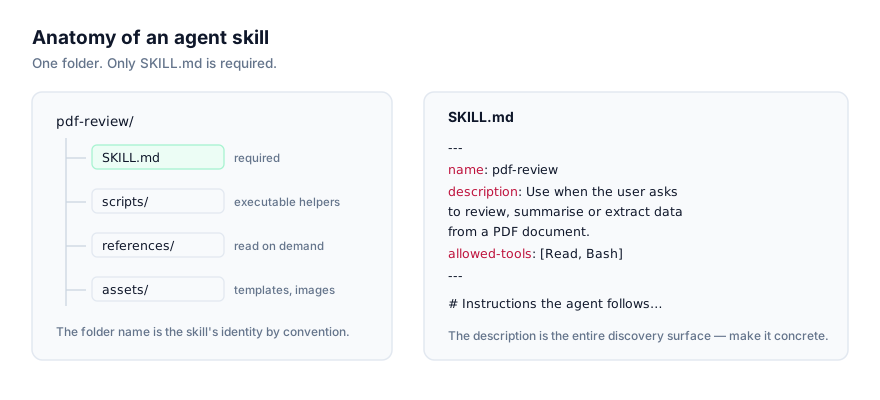
You add a folder like this to Cowork through the + menu, the same route used for recording, just choosing "add" rather than "record." Once it's added, Cowork treats it the same as any other skill: it reads the name and description at the start of a session and pulls in the full instructions only when a task actually matches, the same progressive disclosure mechanic that makes the format cheap everywhere it's implemented.
The Team skill directory
On Team and Enterprise plans, the team skill directory is where shared skills live. The ones an admin has published so the whole workspace can use them, or that a colleague has pushed there directly (the same publishing step covered in the Record a Skill guide for demonstrated skills, and equally available for hand-written folders you've added yourself). Practically, this plays the same role a shared skills repository plays for engineering teams using Claude Code, a common source of truth instead of five people separately writing the same expense-report skill in five slightly different ways.
If you're setting one up for a team, treat it like any shared resource: review what goes in before it's published org-wide, and keep descriptions specific enough that skills only fire when they're actually relevant, not so broad they start colliding with each other.
What's honestly different from Claude Code
If you've installed skills for Claude Code or another CLI-based agent, the biggest adjustment moving to Cowork isn't the skill format. It's the install path itself.
Claude Code is a filesystem. You drop a skill folder into ~/.claude/skills/ for something available everywhere, or .claude/skills/ for something scoped to one project's repo. You can ls the directory, put it under version control, diff changes to a SKILL.md, and script your own install process around it. The cross-agent skills CLI (npx skills add owner/repo/skill --agent claude-code) writes directly into that folder.
Cowork is a GUI. There is no terminal step. There is no npx skills add --agent cowork. That command doesn't exist for this platform, and any instructions implying otherwise don't apply here. Everything routes through the + menu inside the app, and the team-wide layer is a directory inside the product, not a shared repo you git clone. This is a deliberate trade-off, not a gap: Cowork's whole premise is that non-technical people should be able to extend it without touching a command line, and a filesystem-first install flow works against that goal.
Practically, this means:
| Claude Code | Claude Cowork | |
|---|---|---|
| Install mechanism | Filesystem folder | + menu in-app |
| CLI installer | npx skills add --agent claude-code | Not available |
| Personal scope | ~/.claude/skills/ | Personal skills in your Cowork account |
| Shared/team scope | .claude/skills/ in a repo, version-controlled | Team skill directory (Team, Enterprise) |
| Version control | Native — it's just files in git | Not exposed as files you can diff |
| Authoring | Hand-write SKILL.md | Hand-write and add, or record by demonstration |
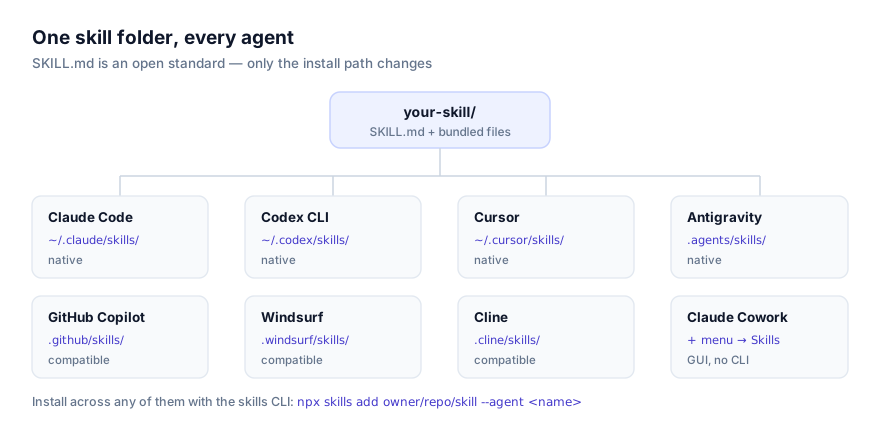
Neither approach is strictly better. They're built for different users. A developer comfortable in a terminal gets more control and auditability from Claude Code's filesystem model. Someone running finance operations or content workflows gets a lower barrier to entry from Cowork's GUI. See our full comparison of recorded skills versus hand-written SKILL.md for where each authoring style earns its place regardless of which platform you're on.
Desktop, web and mobile: does it matter where you add a skill?
Cowork isn't limited to the desktop app. Since 7 July 2026, it also runs from claude.ai in the browser and from the Claude mobile apps on iOS and Android. Sessions on those surfaces execute remotely in the cloud. A task keeps running after you close your laptop, and a scheduled task can fire with no device online at all. The Windows desktop app itself landed 10 February 2026; macOS and Linux (beta) round out the desktop options.
Skills are tied to your account, not to a specific device or app. A skill you've added (whether hand-written or recorded) is available to a Cowork session regardless of which surface you started it from. There's one meaningful asymmetry worth knowing about: Record a Skill, the demonstration-based authoring path, is documented as living in the + menu of the Claude desktop app specifically. If you're working primarily from the browser or mobile, adding an existing skill folder works the same way everywhere, but recording a new one from raw demonstration is a desktop-app workflow as of August 2026.
Reviewing a skill before you add it
Cowork doesn't add a code-review step of its own when you add a skill folder. A .zip or a folder can contain anything its author put in it. If you're pulling a skill from a public source rather than writing it yourself, read the SKILL.md body and any bundled scripts on the skill's actual GitHub source before you add it, the same habit that matters for every platform in this ecosystem. This site links out to source on GitHub rather than re-hosting skill files for exactly that reason. You should be able to read a skill before you run it, not just after.
Why skills matter more in Cowork than in a one-off chat
A single Cowork session without any skills still works, Claude figures out how to click through a task from your instructions in the moment. What a skill adds is repeatability: the same task, done the same correct way, without you re-explaining the constraints and edge cases every single time you ask for it. That matters more in Cowork than in a normal chat because Cowork tasks tend to be longer, more multi-step, and more likely to repeat on a schedule, a weekly report, a recurring reconciliation, a standard intake process. A skill is where the knowledge of "how we actually do this" gets stored once instead of re-typed into every session.
This is also why the Team skill directory earns its place. Without it, that same knowledge either lives in one person's head, in a document nobody opens mid-task, or gets rebuilt independently by every person who hits the same recurring job. A shared, reviewed skill directory turns "how we do this" into something the whole team's Cowork sessions can draw on consistently.
Verifying a skill loaded correctly
- After adding a folder or confirming a publish to the team directory, start a new Cowork session. Skills are read at the start of a session, so one already open before you added the skill won't pick it up.
- Describe the task in plain language, the way you'd naturally ask for it, rather than naming the skill directly. If the description was written well, Claude should reach for it without being told to.
- If it doesn't fire, ask directly what skills are currently available to the session. This rules out an add or publish step that silently didn't complete.
- For a team-directory skill, have a colleague on a different account confirm they see it too, since a personal add and an org-wide publish are two different actions that are easy to conflate.
Why isn't my skill activating in Cowork?
A skill added through the + menu doesn't show up in a session. Confirm it finished adding (a large folder or zip can take a moment) and start a fresh Cowork session rather than checking one that was already open, since skills are read at session start.
A skill works for you but not for a teammate. Check whether it was actually published to the team skill directory or only added to your personal account. Personal additions don't automatically propagate to colleagues.
A skill written for Claude Code doesn't fully work in Cowork. If its instructions depend on a bundled script assuming general-purpose shell access, that's likely the point of failure. Cowork's execution model isn't identical to a coding agent's terminal. Skills built around instructions and reference material port over more cleanly than script-heavy ones.
You can't find where to manage skills at all. It's the + menu inside an active Cowork session, not a separate settings page, if you're looking in Settings the way you would for Claude Desktop, that's the wrong place for Cowork specifically.
Two skills seem to conflict, or the wrong one fires. This is almost always a description problem, two skills with overlapping, vague descriptions competing for the same request. Tighten each one to name the specific situation it's for.
For Anthropic's own current walkthrough of the Cowork interface, see their support article on letting Claude use your computer in Cowork, since exact screen layouts change more often than the underlying model does. To browse what's already built rather than adding your own, start at all skills or the category pages.