

What a skill is, and what changes in Claude Desktop
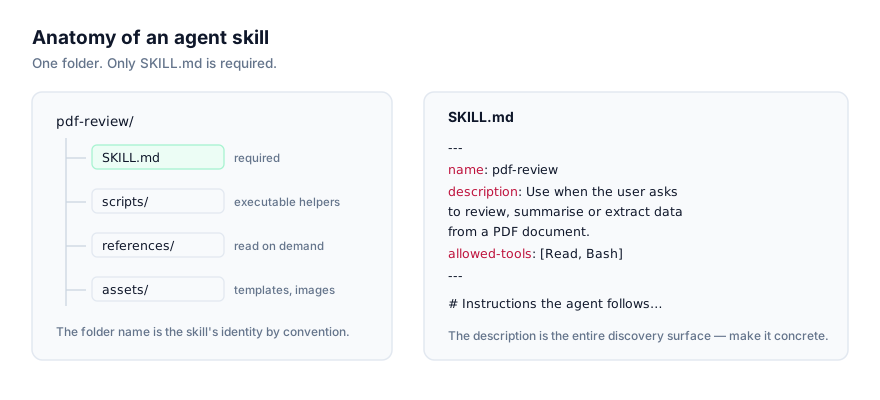
An agent skill is a folder built around one required file, SKILL.md. It opens with YAML frontmatter (name, description, and optionally allowed-tools and model) followed by a markdown body of instructions. Some skills also bundle scripts/, references/, or assets/ subfolders that only get read when the instructions call for them.
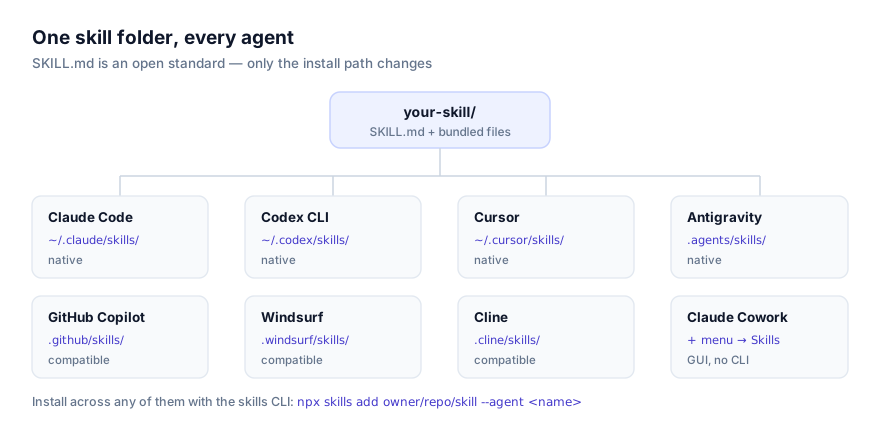
Anthropic published this as an open standard in late 2025, and it's read unmodified by Claude Code, the Claude API, Claude Cowork, OpenAI's Codex CLI, Cursor, Google Antigravity, and several third-party agents. Claude Desktop is a native implementation too, but it stands apart from the rest of that list in one specific way: it's the only one built around a graphical settings screen instead of a filesystem directory a CLI agent reads at startup. If you're coming from Claude Code, where you drop a folder into ~/.claude/skills/, the underlying format is identical, only the delivery mechanism changes.
The reason skills load quickly regardless of platform is progressive disclosure. At the start of a conversation, Claude reads only each enabled skill's name and description, a few lines each, not the full body. When something you ask matches a description, Claude loads that one skill's full instructions. Everything else, including any bundled scripts or reference files, stays unread until the instructions actually direct Claude to open them. This is why you can have many skills enabled in Claude Desktop without every conversation getting slower. The cost only shows up for the skill that's actually relevant.
This also explains why the description field deserves more care than it usually gets. It's the entire discovery surface: the only text Claude sees before deciding whether a skill is relevant at all. A skill described as "handles formatting" will sit unused because nothing you type will obviously match it. A skill described as "use when asked to reformat a spreadsheet export into the quarterly report template" gets picked up because it names the actual situation. If you're evaluating whether a skill is worth uploading, read its description first. It tells you more about whether it'll actually fire than the rest of the file does.
Why use a skill in Claude Desktop specifically
Claude Desktop is where a lot of non-engineering work happens: drafting documents, working through a research question, applying a house style to writing, filling out a template the same way every time. A skill turns "here's how I always want this done" into something Claude applies automatically instead of something you re-explain in every new chat. Because it's account-level rather than tied to a codebase, it fits work that isn't naturally scoped to a single project folder (a writing style guide, a meeting-notes template, a set of instructions for how you like data summarized) the kind of thing you'd otherwise paste into a system prompt over and over.
The install route: Settings, not the command line
Claude Desktop has cliAgent set to none in the platform data behind this site, and that's not an oversight. There genuinely is no npx skills add command for Desktop. Skip any instructions that show a CLI install for this platform; they don't apply here.
The actual route is:
Settings → Capabilities → Skills
From there:
- Open Settings and go to the Capabilities section.
- Select Skills.
- Upload a skill. Either a folder (where your browser or OS supports folder upload) or a
.zipfile containing the skill. - Confirm the skill appears in the list, enabled.
There's no separate "personal" versus "project" upload step to choose between. Desktop's project path is not applicable, because there's no concept of a project folder to install into. Whatever you enable through Settings is available across your conversations. For the full walkthrough with the current screen layout, see Anthropic's own support article on using skills with Claude, since UI details in a settings screen change more often than a directory path does.
What a Desktop-friendly SKILL.md looks like
Because Desktop can't run arbitrary local scripts the way a terminal-based agent can, skills built for it tend to lean on instructions and reference material rather than executable code. A folder like this is a good fit:
brand-voice-editor/
├── SKILL.md
└── references/
    ├── style-guide.md
    └── banned-phrases.md
---
name: brand-voice-editor
description: Rewrites drafts to match our brand voice, short sentences, no jargon, active voice. Use when asked to edit, tighten, or "make this sound like us."
---

# Brand Voice Editor

1. Read references/style-guide.md for tone rules before editing.
2. Flag any phrase that appears in references/banned-phrases.md and suggest a replacement.
3. Keep paragraph structure; don't reorganize unless asked.
Notice there's no scripts/ folder and no allowed-tools entry pointing at a shell. That's deliberate. A skill this shaped works everywhere Agent Skills are supported, Desktop included, without hitting a capability it doesn't have.
Why script-heavy skills are the wrong fit here
A skill that shells out to a Python script, calls an external API from a bundled script, or manipulates local files directly assumes an agent with general-purpose tool execution, the kind Claude Code, Codex CLI, or a CLI-based coding agent gives you. Claude Desktop doesn't hand a skill that same kind of open-ended local execution. If you install a skill written for a coding agent and its instructions depend on running a bundled script, expect that part of the skill to be a dead end in Desktop even if the rest of the instructions still apply. When you're choosing what to install here, favor skills built around templates, checklists, and reference documents. The categories that don't need a shell to be useful. If a skill's description leads with "runs a script to…," check its source before assuming it'll work end-to-end in Desktop.
Verifying the skill loaded
- After uploading, check Settings → Capabilities → Skills and confirm the skill is listed and its toggle is on.
- Start a new conversation. Skills are read at the point a conversation begins, so a chat that was already open before you enabled the skill won't have picked it up.
- Describe a task in ordinary language that matches the skill's
description. Don't name the skill file directly. If it's written well, Claude should apply it without being told to. - If nothing happens, ask Claude directly what skills it currently has access to, to rule out an upload that didn't actually register.
Scope: there's only one
Unlike CLI-based agents that split installs between a personal, cross-project directory and a project-specific one, Claude Desktop doesn't have that distinction, its project path is not applicable. Every skill you enable through Settings applies the same way regardless of which conversation you're in. That's simpler to reason about, but it also means you can't scope a skill to "just this one thing I'm working on" the way you could with a project folder in a code editor. If a skill only makes sense for a narrow use case, the practical scoping mechanism is its own description. Write it tightly enough that it only activates for the situation it's meant for, and toggle it off in Settings when you're done with it.
Why isn't my skill activating in Claude Desktop?
Skill uploaded but never activates. The most common cause across every agent, and Desktop is no exception: the description doesn't match how you actually phrase requests. Rewrite it to name the trigger in plain language rather than summarizing the skill's internals.
Upload fails or the zip is rejected. Confirm the zip contains the skill folder at its root. SKILL.md should be one level down from the top of the archive, not buried in a nested folder from how it was originally packaged.
Skill toggle is on but nothing changes. Check that you started a new conversation after enabling it. An in-progress chat that predates the toggle won't retroactively gain access.
Instructions reference a script that never runs. This isn't a bug. It's the execution gap described above. If a skill's steps depend on running a bundled script, that step won't complete in Desktop. Read the skill's SKILL.md before uploading to see whether it assumes a shell.
Two enabled skills conflict. If responses seem to blend instructions from two different skills, or apply the wrong one, tighten both descriptions so their trigger conditions don't overlap.
Skill worked yesterday, doesn't today. Settings changes, including an accidental toggle-off or a skill removal, persist across conversations. Check the Skills list in Settings before assuming something else broke.
Team or workspace admin has disabled skills. If you're on a Team or Enterprise setup and skills don't appear as an option at all, that's a configuration decision outside your own Settings. Check with whoever administers your workspace before troubleshooting further on your end.
Skill appears to work, but part of it is silently skipped. Reread the instructions for anything that assumes local execution. A step like "run the validation script" or "call the API using the bundled client" has no path to actually happen in Desktop. Claude will generally do what it can with the rest of the instructions and quietly drop the part it has no way to carry out, which can look like a partial failure rather than an obvious error.
Uploaded the wrong version after editing a skill locally. If you're iterating on a skill's SKILL.md on your own machine before uploading, it's easy to zip an older folder by mistake. Re-zip immediately before uploading rather than reusing a zip file from earlier in the session.
Security: read it before you upload it
A zip file is opaque until you look inside it. Before uploading anything to Claude Desktop, read the SKILL.md body and any bundled files on the skill's actual source, its GitHub repository, not a copy someone else repackaged. This site links to a skill's real source specifically so you can do that review before installing, rather than trusting a description alone. Even though Desktop can't run arbitrary scripts the way a CLI agent can, a skill's instructions still direct what Claude does and says inside a conversation, so "it can't execute code" isn't the same as "there's nothing to review." See the security guide for a fuller checklist before you install anything from an unfamiliar source.
Where to go from here
Browse Claude Desktop's platform page or the full skills directory for something to try first. Reference-heavy skills (style guides, templates, structured checklists) are the strongest fit for this platform. If you're new to the format, what an agent skill is and the SKILL.md format explained are good starting points. If you also work in a coding agent day to day, how to install skills in Claude Code and how to use Agent Skills with the Claude API cover the other two Anthropic-native routes, both of which do support script execution.