

What Record a Skill actually does
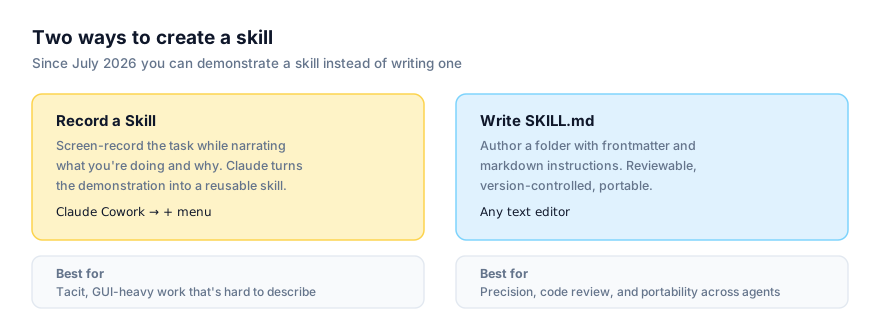
Record a Skill, launched 21 July 2026, is a second way to create an agent skill. Until it shipped, the only route was writing a SKILL.md file by hand, YAML frontmatter plus markdown instructions, as described in what an agent skill is. Record a Skill replaces the writing with showing: you screen-record yourself doing a task inside Claude Cowork while narrating what you're doing and why, and Claude converts that demonstration into a reusable skill it can run again without you re-explaining it.
That narration matters more than the clicking. A silent screen recording gives Claude a sequence of clicks and keystrokes with no explanation of the goal, the constraints, or why you made the choices you made. Talking through your reasoning as you go. "I'm filtering to this quarter because finance only wants current data," "I'm skipping this row because it's a duplicate". Is what lets Claude generalize the skill beyond the exact inputs on screen during the recording. This is the single biggest quality lever in the whole process, and it's covered in depth further down.
Anthropic's own usage data puts the target audience in focus: more than 90% of Cowork usage is non-software work. Operations, finance, content, the kind of repetitive knowledge work that's hard to script but easy to demonstrate. Record a Skill is built for people who know exactly how to do a task but have never written a line of code and have no interest in learning SKILL.md syntax to automate it.
Where to find it, and who has access
Record a Skill lives in the + menu of the Claude desktop app, under "Record a skill." It sits alongside whatever other options that menu exposes for adding to a Cowork session. See how to add skills to Claude Cowork for the rest of that menu.
| Plan | Cowork access | Record a Skill | Share with named colleagues | Publish to org directory |
|---|---|---|---|---|
| Pro | Yes | Yes | No | No |
| Max | Yes | Yes | No | No |
| Team | Yes | Yes | Yes | Yes |
| Enterprise | Yes | Not named in Anthropic's plan breakdown as of August 2026* | Yes | Yes |
*Cowork is confirmed on all paid plans, and sharing/publishing is confirmed on Team and Enterprise. Anthropic's published breakdown of the recording feature itself names Pro, Max and Team, not explicitly Enterprise. If you're on an Enterprise seat and can't find "Record a skill" in the + menu, that's worth a quick check with your workspace admin rather than assuming it's a bug on your end.
Before you start recording
Treat the setup like you would for recording a screen-share demo for a colleague, because functionally that's what it is.
- Pick one bounded task. "Reconcile this week's expense report against the card statement" is bounded. "Do my Monday morning routine" is not. It's several unrelated tasks stitched together, and Claude will struggle to turn that into one coherent, reusable skill.
- Get your environment into a clean starting state. Close tabs, windows and notifications that aren't part of the task. Anything visible on screen is something Claude can see and potentially reference.
- Have realistic but non-sensitive data ready. Use a sandbox account, a duplicated test file, or scrubbed data, not a live customer record. More on why in the privacy section below.
- Know your narration before you start. You don't need a script, but you should know the two or three points in the task where you're making a judgment call, because those are the moments where narrating why matters most.
Recording the demonstration
Once you start recording from the + menu, do the task at a normal pace, not slowed down for the camera, not rushed. Narrate as you go:
- What you're doing: "I'm opening the shared drive folder for this month's invoices."
- Why you're doing it: "I only process invoices over $500 here, anything smaller goes through the automated system already."
- What "done" looks like: "Once every row in this column is filled in, the task is complete."
The "why" is what separates a skill that generalizes from one that's brittle. A demonstration that only shows what you clicked teaches Claude to reproduce those exact clicks. A demonstration that explains your reasoning teaches Claude the underlying rule, which holds up when next month's invoice list has a different number of rows or a slightly different layout.
Stop the recording once the task reaches its natural end state. The report is filed, the email is sent, the record is updated. Don't pad the recording with cleanup or unrelated follow-on tasks.
What happens after you stop recording
Claude processes the demonstration and produces a reusable skill: something with a name, a description it will use later to decide when this skill is relevant, and instructions derived from what you showed and said. This is the same underlying shape as a hand-written skill (name, description, instructions) just authored by demonstration instead of by typing, and managed inside Cowork's interface rather than as a folder you edit directly. Conceptually, recording the "reconcile this week's expense report against the card statement" task from the setup example above produces something with the same shape as a hand-written skill would declare up front:
name: expense-reconciliation
description: Use when reconciling this week's expense report against the card statement.
The difference is authorship, not structure, Claude derives that name and description from your narration instead of you typing them.
Review what Claude produced before you treat it as done. Check that the description actually reflects when you want this skill to fire. That's the field Claude uses to decide relevance the next time, the same way it's the highest-leverage field in a hand-written SKILL.md. If the description is vague, the skill either won't fire when you need it or will fire when you don't. Run it once on a fresh, low-stakes instance of the task before trusting it with something that matters.
How sharing works on Team and Enterprise
On Team and Enterprise plans, a recorded skill isn't stuck on the machine that recorded it. You have two sharing options:
- Share with named colleagues. Send the skill to specific people who need it, without exposing it to the whole organization. This suits a skill built around one person's workflow that a small group shares, a handoff between two roles, a process one team owns.
- Publish to the org directory. Make the skill available to everyone in the workspace, the same way a hand-written skill can sit in a team skill directory. This suits genuinely common processes, a standard report format, a routine data pull, anything more than one team runs the same way.
Before publishing broadly, think about what the recording exposed. A skill recorded against a specific customer account, a specific internal tool with real data on screen, or a workflow that happens to reveal internal numbers isn't automatically safe to hand to the whole org just because the automation itself is generic. Review before you widen the audience, not after.
How to record a good skill: practical advice
Narrate intent, not just actions. "Click here, then here, then type this" produces a skill that's a recording of your mouse, not an understanding of your task. "I'm checking this field because it determines which template applies" produces a skill that can make the same judgment call on a new instance of the task.
Do one clean, representative run, not your first attempt. If you're demonstrating a process you don't do often, do a practice pass first, off-camera, to work out the steps. Record the version where you don't hesitate, backtrack, or fix a mistake mid-recording. A recording full of "wait, wrong button" teaches Claude your mistakes as much as your process.
Keep the task bounded. One task, one clear outcome. If you catch yourself narrating "and now I'll also quickly do this other thing while I'm here," stop. That's a second skill, and bundling it in makes both harder to trigger correctly later. Two tightly-scoped skills with clear descriptions beat one sprawling one every time.
Represent the task honestly, including the parts that vary. If the real task sometimes has five rows and sometimes has fifty, don't pick the tidiest possible example, narrate the part that's supposed to generalize ("this loop continues for however many rows have data") rather than relying on Claude to infer it from a single fixed-size example.
Avoid sensitive data on screen entirely. Use test accounts, sandbox environments, or data you've deliberately scrubbed. This isn't just good practice. It's the only way to safely re-review the recording later or share the resulting skill with colleagues without also handing them a look at real customer or financial data. See the privacy section below.
End cleanly. Stop recording right at the natural completion point. A recording that trails off into "okay, and now let me just check something unrelated" makes Claude's job of identifying where the task actually ends harder.
Troubleshooting: why a recorded skill isn't working as expected
The skill doesn't fire when you expect it to. The description Claude generated from your narration is probably too narrow or doesn't match how you naturally phrase the request. Review the skill's description and, if the tool allows editing it directly, tighten it; otherwise re-record with clearer narration about when this task comes up.
The skill fires but does the wrong thing on a new instance of the task. This usually means the original demonstration was too specific, Claude learned your exact example rather than the underlying rule. Re-record with more explicit narration of the why behind each step, especially at decision points.
The skill breaks partway through a run. If the target application's layout, menu structure, or workflow has changed since you recorded, a step the skill expects no longer matches what's on screen. Re-record against the current version of the app.
Recording won't start. Modern operating systems gate screen capture behind an explicit permission prompt. If nothing happens when you select "Record a skill," check your OS's privacy or security settings and confirm the Claude desktop app has been granted screen recording access.
A shared or published skill doesn't show up for a teammate. Confirm it was actually shared with them by name or published to the org directory rather than left private, recorded skills default to visible only to the person who made them until you take the sharing step.
You can't find "Record a skill" in the + menu at all. Confirm your plan. It's available on Pro, Max and Team as of August 2026. If you're on Enterprise, check with your workspace admin, since Anthropic's plan breakdown doesn't explicitly list Enterprise for the recording feature itself, only for receiving shared and published skills.
Privacy and security: you're recording your screen
This is worth being deliberate about, because it's easy to forget mid-task that a screen recording captures everything visible, not just the application you think you're demonstrating.
- Close what isn't part of the task. Email clients, chat apps, and browser tabs with unrelated accounts logged in are all fair game for a screen recorder if they're open. Close them before you start.
- Mute notifications. A Slack DM or an email preview popping up mid-recording puts its contents in the recording, whether or not it's relevant.
- Never demonstrate against real customer, financial, or health data if you can avoid it. Use a sandbox environment or synthetic data. If the task genuinely can't be demonstrated without real data, treat the resulting recording and skill as sensitive in their own right, and think hard before publishing it to an org-wide directory.
- Remember that sharing the skill can mean sharing what's in the recording. Depending on what Claude retains from the demonstration to build and refine the skill, artifacts of what was on screen may be more persistent than a live screen-share would be. Default to caution: treat anything you wouldn't want a colleague to see later as something that shouldn't be on screen during recording at all.
- Review before you publish. Before sharing with named colleagues or publishing to the org directory, watch back what you recorded (or at minimum, reconstruct mentally what was visible) and confirm nothing in it should have stayed private.
The general rule: if you wouldn't screen-share it live with the eventual audience of the skill, don't have it on screen while recording.
Recorded skill or hand-written SKILL.md?
Record a Skill is not a replacement for hand-written SKILL.md files. It's a second path that suits different work. Recording is faster for tacit, GUI-heavy tasks that are hard to put into words but easy to demonstrate. A hand-written skill is better when you need precision, code review, version control in git, or a skill that has to run on more than the Claude ecosystem. See Recorded Skills vs Hand-Written SKILL.md for the full comparison, including which is the better fit for specific kinds of tasks. Most teams that adopt both end up using each where it's actually stronger, rather than picking one and forcing every task through it.
If you're ready to explore what already exists rather than build your own, browse all skills or the category pages. A written skill someone else has already reviewed and shared may cover the task you were about to record.