

What a skill is, and why Cline can use it well
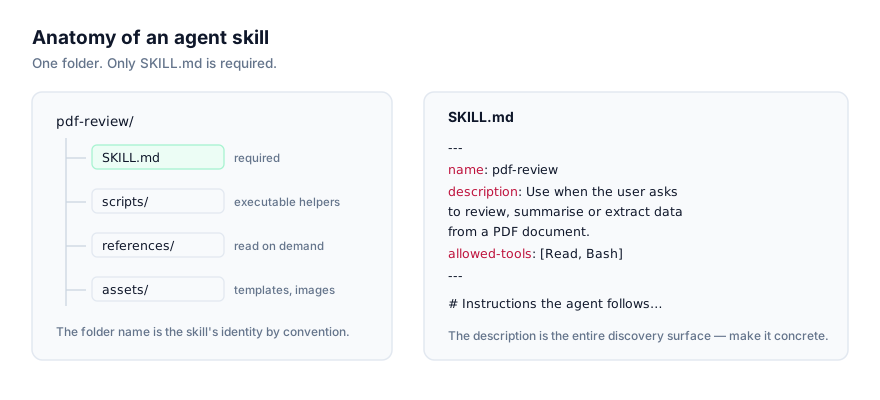
An agent skill is a folder anchored by one file, SKILL.md. It starts with YAML frontmatter (name, description, and optionally allowed-tools and model) followed by markdown instructions, and it can optionally include scripts/, references/, and assets/ subfolders. Anthropic published this as an open standard in late 2025, and the same folder, unmodified, is now read by Claude Code, Claude Desktop, the Claude API, Claude Cowork, Codex CLI, Cursor, Google Antigravity, and a growing list of third-party agents.
Cline is one of the more capable homes for a skill on that list, because it's built to act autonomously inside VS Code (editing files, running terminal commands, iterating against feedback) rather than just producing suggestions for a human to apply by hand. A skill gives Cline a packaged, reusable way to handle something specific: a project's testing conventions, a deployment checklist, a code-generation pattern for a particular framework. Instead of restating that context in every new task, you install it once and Cline picks it up automatically when it's relevant.
The mechanic behind it: progressive disclosure
At the start of a Cline task, only the name and description of each available skill get read, not the body, not anything under scripts/ or references/. When your request matches a description, Cline loads that skill's full SKILL.md. Bundled files load only if the instructions direct Cline to open them.
This is why installing a large number of skills doesn't slow every task down proportionally, only the one that actually matches gets read in full. It also means the description field carries all the weight. If it's vague or reads like internal documentation ("handles formatting logic") rather than a trigger condition ("use when asked to reformat a component to match our design system"), Cline has nothing to match your request against, no matter how solid the instructions underneath are.
Skills also compose with the rest of what Cline already does inside VS Code, reading open files for context, running the project's build and test commands, applying diffs directly to the workspace. A skill doesn't replace any of that; it adds a named, reusable procedure Cline reaches for on top of it. For a task you'd otherwise describe from scratch every time ("when you touch this folder, follow this pattern," "before opening a PR, check these three things") a skill removes the retelling without removing Cline's ability to still reason about the specifics of the task in front of it.
Native vs. compatible: where Cline fits
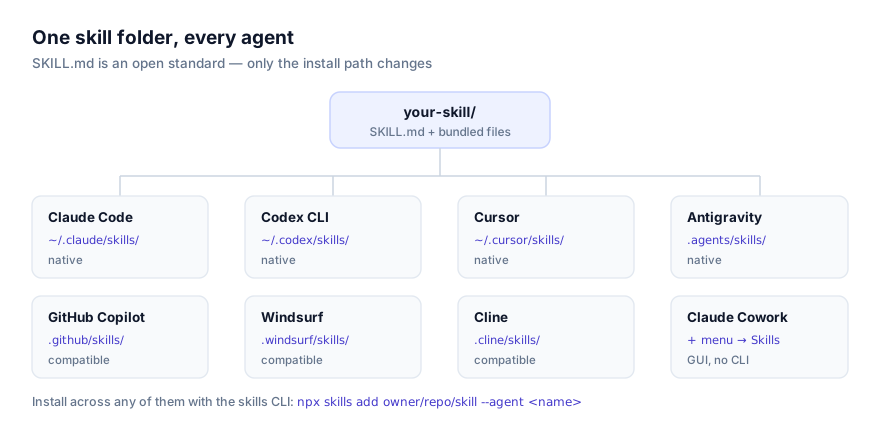
The platform data behind this site sorts agents into two support levels. Native means the vendor built first-party, documented support for the open standard directly into the product, Claude Code, Claude Desktop, the Claude API, Claude Cowork, Codex CLI, Cursor, and Google Antigravity are in this group. Compatible means the agent reads the identical SKILL.md format and follows the same progressive-disclosure rule, having adopted it as an open convention rather than a bespoke vendor feature. Cline sits in the compatible group, alongside GitHub Copilot, Windsurf, OpenCode, and others.
Functionally, this distinction doesn't change how a skill behaves once it's installed correctly. Cline reads the same frontmatter fields, applies the same discovery mechanic, and (because it has real tool execution inside VS Code) runs bundled scripts the same way a native CLI agent would. What differs is mainly where you'll find first-party documentation, and the fact that the canonical install tooling for this format is the shared skills CLI rather than something Cline built and maintains on its own.
Installing a skill in Cline
Using the CLI
The skills CLI installs across every agent that supports this format, Cline included. From your project's root. VS Code's integrated terminal is the natural place to run this:
npx skills add owner/repo/skill --agent cline
Replace owner/repo/skill with the real path of the skill you're installing; find it on the skill's page at getclaudeskills.com/skills. The --agent cline flag targets Cline's own directory.
Worth understanding, not just running blind: the CLI's canonical storage location (listed as Cline's "global path") is ~/.agents/skills/. That's shared infrastructure the skills CLI manages across every compatible agent, not a Cline-specific personal directory. Running the install command writes the skill's files to ~/.agents/skills/<skill-name>/, then links that skill into your project's .cline/skills/<skill-name>/, which is the directory Cline actually reads from inside VS Code.
Manual install
To skip the CLI, download or clone the skill folder and place it directly at:
.cline/skills/
A finished install looks like:
.cline/skills/
└── component-scaffolder/
    ├── SKILL.md
    ├── scripts/
    │   └── generate_component.py
    └── references/
        └── component-conventions.md
With SKILL.md reading:
---
name: component-scaffolder
description: Scaffolds a new UI component matching this repo's existing structure, file layout, prop typing, and test file. Use when asked to create or add a new component.
allowed-tools: ["bash", "read", "write"]
---

# Component Scaffolder

1. Read references/component-conventions.md for naming and folder rules.
2. Run scripts/generate_component.py with the component name.
3. Confirm the generated files match the existing pattern before finishing.
Cline can run bundled scripts and write files directly, so a skill shaped like this (combining instructions, a script, and reference material) works as intended. That's a meaningful contrast with an agent like Claude Desktop, which has no equivalent local execution and can't run scripts/generate_component.py at all. If you're borrowing a skill originally written for Cline or another CLI-capable agent and trying it somewhere else, check whether it depends on script execution before assuming it'll transfer cleanly.
Verifying the skill loaded
- Confirm the folder is actually in place: check
.cline/skills/<skill-name>/exists in your VS Code file explorer or runls .cline/skills/in the terminal. - Start a new Cline task, or reload the VS Code window if Cline was already running. Skills are read at the point a task begins, so a task in progress before the folder existed won't have it.
- Give Cline a request that matches the skill's
descriptionin plain language, without naming the skill file. If the description is specific enough, Cline should apply it without being told to. - For a direct check instead of an inferred one, ask Cline what skills it currently has access to in this project.
If step 3 comes up empty, treat the description as the first thing to fix. See the failure modes below before assuming the install itself is broken.
Personal vs. project scope
| Scope | Path | Applies to |
|---|---|---|
| CLI canonical storage | ~/.agents/skills/ | Your machine, managed by the skills CLI |
| Project | .cline/skills/ | This VS Code workspace, and shared if committed |
If you want a skill available in every VS Code workspace you open Cline in, install it once with the CLI. It lands in the shared canonical storage that functions as Cline's "global" scope. If a skill only makes sense for one codebase (its file layout, its testing setup, its specific conventions) install into that project's .cline/skills/ and commit the folder so teammates opening the same workspace get it too. Nothing stops a skill from existing in both places at once if you want it broadly available and also version-controlled with a particular project's history.
Why isn't my skill activating in Cline?
Skill never activates. The most common cause, and it's almost always the description. Cline only sees that field before deciding relevance, if it summarizes the skill's contents instead of naming the trigger situation, rewrite it as "use when asked to…" in plain, request-like language.
Skill folder isn't where Cline looks. Verify it landed at .cline/skills/<name>/, not .agents/skills/, .claude/skills/, or nested an extra level from an unzip.
Task was already running when you installed. Cline reads skills at task start. A task open before the folder existed won't pick it up. Start a new one, or reload the VS Code window if you're unsure whether the workspace state is stale.
VS Code workspace trust blocks execution. If VS Code is treating the folder as untrusted, Cline may not be able to run a bundled script even though the skill loaded correctly. Check the workspace trust setting for the project if a script-dependent skill loads but its script step never completes.
CLI install ran, but nothing appears in the project. Confirm the command was run from inside the actual project root open in VS Code, not a parent directory or your home folder. The project-side link path is resolved relative to your current working directory at install time.
Bundled script fails silently. Check that the interpreter the script expects is available in the environment Cline's terminal commands run in, and that file paths inside the script are relative to the skill's own folder rather than assuming the workspace root.
Two skills compete for the same request. If Cline applies the wrong skill, or blends instructions from two, their descriptions likely overlap. Tighten each one until the trigger conditions are clearly distinct.
Skill works in one workspace, not another. If you installed via the CLI's canonical storage in one project but never linked it into a second workspace's .cline/skills/, that second project won't see it. Installs are per-project unless you explicitly repeat them.
Skill appears in the folder but Cline never mentions it, even indirectly. Open SKILL.md and check the YAML frontmatter parses cleanly, a stray unquoted colon in the description, or a missing closing quote, can cause an agent to skip a skill without surfacing a visible error. Validate the frontmatter by eye or with a YAML linter before assuming the description wording is the problem.
Skill was committed but a teammate's Cline doesn't see it. Confirm .cline/skills/ isn't excluded by .gitignore in that repo, a broad ignore pattern aimed at build output or local config sometimes catches dotfolders it wasn't meant to. Run git check-ignore -v .cline/skills/<skill-name> to check.
Security: read it before Cline can run it
Cline can execute a skill's bundled scripts and write to your project directly, real capabilities, not suggestions a human reviews first. Before installing anything, read the SKILL.md body and every file under scripts/ on the skill's actual source repository, not a repackaged copy. This site links out to that source specifically so you can do that review before installing, not after something's already run. If a script does something you can't fully account for, don't install it. Treat it the same as any unreviewed dependency you'd hesitate to add to a project. The security guide has a fuller checklist worth working through, especially before installing a skill with broad allowed-tools access.
Where to go from here
Browse Cline's platform page or the full skills directory for something worth trying first. If the format is new to you, what an agent skill is and the SKILL.md format explained cover the fundamentals this guide assumes. If you also work across other VS Code-based agents, the setup is close enough to transfer directly. A skill installed for Cline needs no changes to also work in Claude Code or OpenCode, only a different target directory.