

Start here if you've never used Claude Code
This is a path through Claude Code for someone starting from zero: install it, run a first real session, learn the handful of commands and habits that cover most days, then know what to learn next once those feel automatic. Everything here is verified against Anthropic's own Claude Code documentation as of August 2026. If you've never opened a terminal at all, Anthropic's terminal guide is the honest place to start before this page, everything below assumes you can navigate directories and run a command.
What Claude Code actually does differently
A chat window answers a question and stops. Claude Code is an agentic coding tool: it reads your project's files as needed without you pasting anything in, runs shell commands, edits files directly, and works through a task across multiple steps, checking its own progress against something concrete like a test suite when you give it one. That's the whole shift to get used to: instead of writing code and asking Claude to review it, you describe an outcome and Claude figures out how to build it, showing you what it changed as it goes (or, depending on your permission mode, asking first).
Step 1: Install it
Claude Code requires a Claude Pro, Max, Team, Enterprise, or Console account, the free Claude.ai plan doesn't include Claude Code access. Once you have one, install with whichever method matches your platform.
macOS, Linux, or WSL, the recommended native installer:
curl -fsSL https://claude.ai/install.sh | bash
Windows PowerShell:
irm https://claude.ai/install.ps1 | iex
Homebrew (brew install --cask claude-code) and WinGet (winget install Anthropic.ClaudeCode) both work too, but neither auto-updates the way the native installer does, you'll need brew upgrade claude-code or winget upgrade Anthropic.ClaudeCode periodically. System requirements are modest: macOS 13.0+, Windows 10 1809+, Ubuntu 20.04+, 4GB+ RAM.
Confirm it worked:
claude --version
A working install prints a version number followed by (Claude Code), something like 2.1.233 (Claude Code).
Step 2: Log in and start your first session
Open a terminal inside a real project, not an empty folder, and run:
cd /path/to/your/project
claude
The first run prompts you to authenticate in your browser. Once logged in, credentials are stored and you won't need to log in again. You'll land on the Claude Code prompt, with the version, current model and working directory shown above it.
Start with something low-stakes to see how it reads a codebase:
what does this project do?
what technologies does this project use?
where is the main entry point?
Claude Code reads your files as needed to answer these, you don't attach anything. This alone is a genuinely useful onboarding tool even before you ask it to change anything: asking the same kind of questions you'd ask a senior engineer, how does logging work, what edge cases does this function handle, is a legitimate way to ramp up on unfamiliar code.
Step 3: Make your first actual change
Try something small and concrete:
add a hello world function to the main file
Claude Code finds the right file, shows you the proposed change, and, depending on your permission mode, asks for approval before it writes anything. Press Shift+Tab to cycle modes: default mode asks before each change, acceptEdits auto-approves file edits, plan mode lets Claude propose a plan without touching disk at all. As of 14 August 2026, auto mode is the default for new sessions on Pro, Max and Team, a separate classifier model reviews each action and blocks anything that escalates scope or looks driven by hostile content, rather than asking you every time.
Step 4: Learn the commands worth memorising
You don't need the full CLI reference on day one. This short list covers most of what comes up daily.
Run from your regular shell:
| Command | What it does |
|---|---|
claude | Start an interactive session |
claude "task" | Run a one-time task |
claude -p "query" | Run a one-off query, then exit (useful for scripts and CI) |
claude -c | Continue the most recent conversation in this directory |
claude -r | Resume a previous conversation from a picker |
Type inside a running session:
| Command | What it does |
|---|---|
/clear | Reset the conversation, use this between unrelated tasks |
/help | List available commands |
/resume | Pick a previous conversation to continue |
/init | Generate a starter CLAUDE.md from your project structure |
Esc twice, or /rewind | Restore conversation, code, or both to an earlier checkpoint |
Step 5: Practice the recipes that cover most days
Anthropic's common workflows page collects prompt patterns for the tasks that come up constantly. Worth deliberately practising each of these once, so the phrasing feels natural:
Find code, before touching anything:
find the files that handle user authentication
how do these authentication files work together?
Fix a bug, giving it the actual error and how to reproduce it:
I'm seeing an error when I run npm test
suggest a few ways to fix the @ts-ignore in user.ts
Refactor, then verify:
suggest how to refactor utils.js to use modern JavaScript features
refactor utils.js to use ES2024 features while maintaining the same behavior
run tests for the refactored code
Write tests by naming what's uncovered and what should be verified:
find functions in the notification service not covered by tests
add test cases for edge conditions in the notification service
Open a pull request once you're happy with the diff:
create a pr
When you create a PR this way (or with gh pr create), Claude Code links the session to it, so claude --from-pr 1234 reopens the session picker filtered to that PR later.
Reference a specific file or directory with @ instead of describing where it lives, explain the logic in @src/utils/auth.js includes the file's full content without you copying anything in.
Step 6: Set up CLAUDE.md
CLAUDE.md is a file at your project root that Claude Code reads at the start of every session, unlike a skill, which only loads when a request matches it. Run /init to generate a starting version from your project structure, then edit it down.
Keep it short. Everything in it is context cost on every single request in that repo, whether the request needs it or not:
# Code style
- Use ES modules (import/export) syntax, not CommonJS (require)
- Destructure imports when possible (eg. import { foo } from 'bar')

# Workflow
- Be sure to typecheck when you're done making a series of code changes
- Prefer running single tests, and not the whole test suite, for performance
For each line, ask whether removing it would actually cause a mistake. If not, cut it, a bloated CLAUDE.md causes Claude to ignore your real instructions, not follow them more closely. Anything that only applies sometimes, an occasional audit procedure, a specific document format, belongs in a skill instead of here, exactly because a skill only loads when it's actually relevant.
Step 7: Give Claude something to check its own work against
The single highest-leverage habit here: don't just ask for a change, give Claude a way to verify it did the right thing.
| Instead of | Try |
|---|---|
| "implement a function that validates email addresses" | "write a validateEmail function. example test cases: user@example.com is true, invalid is false. run the tests after implementing" |
| "make the dashboard look better" | "[paste screenshot] implement this design. take a screenshot of the result and compare it to the original" |
| "the build is failing" | "the build fails with this error: [paste error]. fix it and verify the build succeeds. address the root cause, don't suppress it" |
Without a check it can run, "looks done" is the only signal available, and every mistake waits for you to catch it by hand. With one, Claude runs it, reads the result, and keeps iterating until it actually passes.
Step 8: Learn to manage context, not just prompts
Claude's context window fills up fast, and performance degrades as it fills, so the habits that matter most after your first week are about managing that, not writing cleverer prompts:
/clearbetween unrelated tasks. Starting a second, unrelated task without clearing leaves the first task's now-irrelevant context sitting in the window.- After two failed corrections on the same issue, stop correcting and
/clear. A session where you've corrected the same mistake twice is a session with failed approaches cluttering its context; a fresh, more specific prompt usually beats a third correction. - Delegate exploration to a subagent when you just need an answer, not the fifty files it took to find it:
use a subagent to investigate how our auth system handles token refresh. The subagent reads in its own context window and reports back a summary, keeping your main conversation clean. - Use plan mode for anything you'd want to review first.
claude --permission-mode plan, orShift+Tabuntil the status bar shows⏸ plan mode on. Claude reads and proposes without editing until you approve, worth it for multi-file changes, overkill for a one-line fix you could describe in a sentence.
Step 9: Know what to extend with next, and when
Everything above is Claude Code with no customisation beyond CLAUDE.md. Four extension mechanisms exist past that point, and the beginner mistake is reaching for all of them immediately rather than waiting for a specific, recurring need to point at the right one.
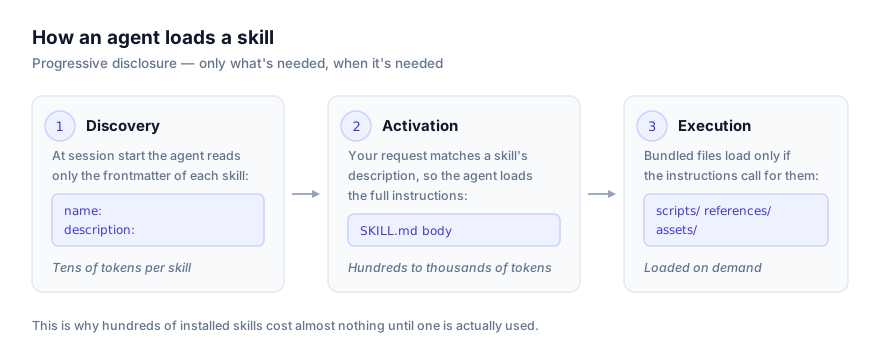
- Agent Skills, a folder with a
SKILL.md, loaded only when a request matches its description. The right home for a specific, occasional procedure, how your team formats a changelog, how to run a particular audit, that you don't want tax on every request. How to write your own covers the format; the description field is the single highest-leverage part of it. - Hooks, scripts that run automatically at specific points, deterministic rather than advisory. Use these for anything that must happen every time with zero exceptions, running a linter after every edit, blocking writes to a migrations folder.
- Subagents, specialised assistants with their own tools and context, defined in
.claude/agents/. Reach for these for isolated, context-heavy tasks, like a security review pass that shouldn't pollute your main conversation. - MCP servers, connections to external tools and data, Notion, Figma, a database, added with
claude mcp add. This is how Claude reaches something it can't get to by reading files or running shell commands.
There's no ranking among these four, each fits a different shape of problem. What matters is not installing or writing any of them speculatively; add one the moment a real, recurring task makes the gap obvious.
Common mistakes to avoid early on
- The kitchen-sink session. Starting one task, asking something unrelated mid-way, then going back to the first. Fix:
/clearbetween unrelated tasks, not just when the window feels full. - An over-specified
CLAUDE.md. Long enough that Claude starts ignoring half of it. Fix: prune ruthlessly; if Claude already does something correctly without an instruction, delete the instruction. - Trusting a plausible-looking result without verification. Fix: always give it something to check against, see step 7.
- Unscoped investigation. Asking Claude to "investigate" something with no boundary, which fills the context reading hundreds of files. Fix: scope the ask narrowly, or push it to a subagent.
A realistic first week
Day 1: install, log in, ask read-only questions about a project you already know well, so you can judge whether the answers are actually right.
Day 2 to 3: make small, low-risk changes in default permission mode, watch what it asks approval for, and start noticing where a vague prompt got a wrong answer versus a specific one.
Day 4 to 5: run /init, write a short CLAUDE.md, and practise the fix-bug and write-tests recipes on real work.
Day 6 to 7: try plan mode on something bigger than a one-line fix, delegate one exploration to a subagent, and if a specific task has repeated three or four times by now, that's the moment to consider whether it's worth turning into a skill.
Where to go next
Once the basics are automatic, what are agent skills and the SKILL.md format explained cover the first extension mechanism worth learning, and how agents discover and activate skills explains why a skill's description matters more than anything else in it. How to install skills in Claude Code covers getting someone else's skill running rather than writing your own. For the permission model in more depth, see the auto mode explainer. Browse the current skill catalog at getclaudeskills.com/platforms/claude-code, or everything cataloged by category.