

What an agent skill actually is
An agent skill is a folder. At minimum it holds one file, SKILL.md: YAML frontmatter with a name and a description, optionally allowed-tools and model, followed by plain markdown instructions. The folder can also carry scripts/, references/, and assets/ subfolders that the agent only opens when the instructions call for them.
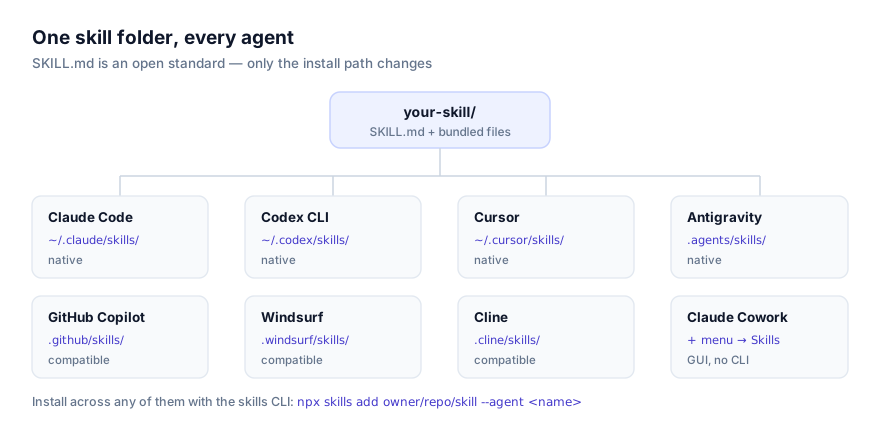
Anthropic published this format as an open standard in late 2025, and it was never meant to be a Claude-only feature. The same, unmodified folder is now read by Claude Code, Claude Desktop, the Claude API, Claude Cowork, OpenAI's Codex CLI, Cursor, Google Antigravity, and a growing list of third-party agents, GitHub Copilot among them. If you've already built or installed a skill for one of those tools, there's nothing to rewrite to bring it into Copilot's agent mode.
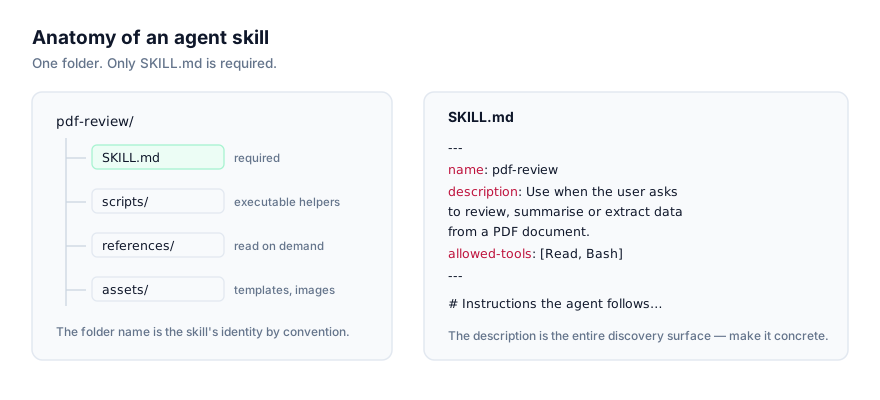
The mechanic that makes this cheap is progressive disclosure. At the start of a session, Copilot reads only the name and description of every skill it can see, not the body, not the scripts. When a request matches a description, it loads the rest of that one SKILL.md. Everything else stays unread. That's why a repo can carry dozens of skills without bloating the context window every session, and it's also why a vague description is the single most common reason a skill never fires: if the text doesn't describe the triggering situation the way a person would actually phrase it, the agent never has a reason to look further.
Why teams reach for skills in Copilot specifically
Copilot's agent mode already runs multi-step tasks against your repo: edits across files, terminal commands, PR descriptions, sometimes a full implementation from a ticket description. A skill turns a one-off set of instructions, "always write commit messages in this format," "here's how we structure a database migration in this codebase," "generate the API client stubs this way". Into something Copilot applies automatically, instead of something you retype or paste into every new session.
The part that matters for teams specifically is where the skill lives. Because the install path is a folder committed to the repository, the instructions travel with the code. Anyone who checks out the branch and opens Copilot's agent mode gets the same skill the author had, reviewed in the same pull request as everything else, and versioned right alongside it. Compare that to a set of instructions pasted into a chat window: it dies with the session and has to be re-explained by every developer who needs it.
Native vs. compatible: where Copilot fits
getclaudeskills.com tracks two support levels for agents that read Agent Skills:
| Support level | Meaning | Examples |
|---|---|---|
| Native | The vendor built first-party support for the open standard directly into the product | Claude Code, Claude Desktop, the Claude API, Claude Cowork, Codex CLI, Cursor, Google Antigravity |
| Compatible | The agent reads the same SKILL.md folder and follows the same progressive-disclosure behavior, by adopting the open convention | GitHub Copilot, Windsurf, OpenCode, Cline, and others |
In day-to-day use this distinction matters less than it sounds. A correctly installed skill behaves identically under either label: Copilot reads the description at session start, loads the body when it matches, and opens scripts/ or references/ only if the instructions call for it. What differs is where first-party documentation lives, and where the canonical install tooling for the skill originates, which is the next section.
It's also worth knowing this isn't a permanent split. The open standard is young enough that "native" mostly reflects which vendors had already shipped documented support by the time it spread beyond Claude, not a technical ceiling on what compatible agents can do. Copilot's agent mode reads the exact same frontmatter fields (name, description, allowed-tools, model) and honors the same progressive-disclosure rule. Nothing about the format itself is gated behind native status.
Installing a skill in Copilot
Option 1: the CLI
The cross-agent installer for Agent Skills is the skills CLI. From inside your repo:
npx skills add owner/repo/skill --agent copilot
Replace owner/repo/skill with the actual path of the skill you're installing. Check its listing on getclaudeskills.com/skills for the exact one. The --agent copilot flag tells the installer which agent-specific directory to wire the skill into.
Here's the detail worth understanding rather than memorizing: the CLI's own canonical storage location, listed as Copilot's "global path," is ~/.agents/skills/. That is not a Copilot-specific personal directory in the way ~/.claude/skills/ is for Claude Code. It's the shared location the skills CLI manages on your machine for any agent installed through it. When you run the command above, the installer writes the skill's files into ~/.agents/skills/<skill-name>/, then links that same skill into your repo's .github/skills/<skill-name>/, which is the directory Copilot's agent mode actually reads.
Option 2: manual install
If you'd rather skip the CLI, download or clone the skill folder and place it directly at:
.github/skills/
A skill folder looks like this once it's in place:
.github/skills/
└── changelog-writer/
    ├── SKILL.md
    ├── scripts/
    │   └── group_commits.py
    └── references/
        └── style-guide.md
And a minimal SKILL.md for that folder:
---
name: changelog-writer
description: Drafts a changelog entry from recent commits and the current diff. Use when asked to write, update, or summarize a changelog.
allowed-tools: ["bash", "read"]
---

# Changelog Writer

1. Run `git log -n 20 --oneline` and diff against the previous tag.
2. Group changes into Added / Changed / Fixed / Removed.
3. Match the wording style already used in CHANGELOG.md.
Because Copilot's agent mode can execute bundled scripts, a skill like this one (which shells out to scripts/group_commits.py rather than just giving instructions) works fine. That's not true of every agent that reads the same folder format (Claude Desktop, for one, can't run a bundled script at all), so it's worth keeping in mind if you're writing a skill meant to travel across several agents rather than live in Copilot alone.
Verifying the skill loaded
Copilot reads skill folders at the start of a session, so verification follows a fixed order:
- Confirm the folder is actually committed:
git statusshould show.github/skills/<skill-name>/as tracked, not untracked or ignored. - Start a new Copilot agent-mode session. Reopening an existing one won't pick up a folder that didn't exist when the session started.
- Ask something that matches the skill's
descriptionin ordinary language, without naming the skill file. If it's written well, Copilot should apply it without prompting. - For a more direct check, ask Copilot what skills it has access to, or ask it to explain what a specific skill does before you rely on it for real work.
If step 3 produces nothing, the description is the first thing to inspect. See the failure modes below.
Personal vs. team scope
| Scope | Path | Who gets it |
|---|---|---|
| CLI canonical storage | ~/.agents/skills/ | Your machine only, managed by the skills CLI |
| Project (the one Copilot reads) | .github/skills/ | Everyone who checks out the repo |
Copilot doesn't document a separate "personal, every-repo" skills directory the way Claude Code's global ~/.claude/skills/ works. The path that actually governs what Copilot's agent mode sees is the project one, .github/skills/. That's a deliberate design, not a gap: because it's a folder inside version control, a skill written once is automatically shared with every teammate who opens agent mode in that repo, reviewed in the same pull request as the code it touches, and rolled back the same way you'd roll back any other change. The trade-off is that if you want a skill available in every repo you personally work in, you install it into each one. There's no Copilot-side global switch to flip.
Why isn't my skill activating in Copilot?
Skill never activates. By far the most common failure. Copilot only sees the description at session start; if it doesn't describe the situation the way a person would phrase a request, the match never happens. Rewrite it in plain language and name the trigger explicitly ("Use when asked to…") rather than describing what the skill contains.
Skill isn't in the folder Copilot reads. If you installed manually, check the folder actually landed at .github/skills/<name>/, not .claude/skills/, .agents/skills/, or a nested subfolder left over from an unzip.
CLI install succeeds but nothing shows up in the repo. Confirm you ran the command from inside the target repo, not your home directory or a parent folder. The project-side link is written relative to your current working directory.
Session started before the folder existed. Skills load at session start, not mid-conversation. If you added the folder after opening a Copilot agent-mode session, that session won't see it. Start a fresh one.
Bundled script fails silently. If a skill shells out to scripts/, check the interpreter it expects is actually available in the environment Copilot's agent mode runs in, and that any relative paths inside the script resolve from the skill's own folder rather than the repo root.
Two skills fight over the same request. If Copilot applies the wrong one, or blends both, their descriptions probably overlap. Narrow each description so the trigger conditions are distinct, vague, broad descriptions collide more often than specific ones.
Works on your machine, missing for a teammate. Nearly always an uncommitted folder or an over-broad .gitignore pattern. Check with git check-ignore -v .github/skills/<skill-name> if you're not sure whether the pattern is catching it.
Skill activates but ignores part of the instructions. This is usually not an installation problem. It's a scope problem inside the SKILL.md body itself. Long, unstructured instructions get skimmed the same way a long README does. Break the body into numbered steps or short sections, and move anything reference-heavy (style guides, schemas, full API specs) into references/ so the main body stays short enough to follow exactly.
Multiple repos, inconsistent behavior. If the same skill behaves differently across repos, check that each repo actually has an up-to-date copy under .github/skills/. Nothing propagates changes automatically, updating the skill in one repo doesn't touch any other, whether you installed via the CLI or by hand.
Security: read it before you commit it
A skill's scripts/ folder can run arbitrary code the moment Copilot decides it's relevant, and its SKILL.md instructions can direct Copilot to take actions with whatever tools are available in that session. Before you install anything (and especially before you commit it into .github/skills/, where it becomes available to your entire team) read the SKILL.md body and every file under scripts/. This site links out to a skill's source on GitHub rather than re-hosting it, specifically so you can read the real code before you run it, not a repackaged copy of unknown provenance. Treat a skill with a script you don't understand the way you'd treat an unreviewed dependency: don't merge it. The security guide has a fuller checklist if you're rolling this out to a whole team.
Where to go from here
Browse the full skills directory or Copilot's platform page to find something worth installing first. If the format itself is new to you, what an agent skill is and the SKILL.md format explained cover the ground this guide assumes. If you end up wanting to write your own, how to write your own agent skill is worth reading regardless of which agent you target. A skill written well for Copilot works unchanged in Claude Code and Codex CLI.